
Path: Settings → 16. Payment Processing
This is the one screen where you set up and control Tank Track Pay — the built-in payment feature that lets your customers pay invoices, statements, and estimates online. Everything here applies to your whole company. There's one payment configuration per account, not one per location.
Before you begin
You need Settings or Reports permission to open the page.
With Reports but not Settings, you'll see a stripped-down version: a single Merchant Portal button and no configuration controls. You can watch the money move, but you can't change how it moves.
Setting up Tank Track Pay
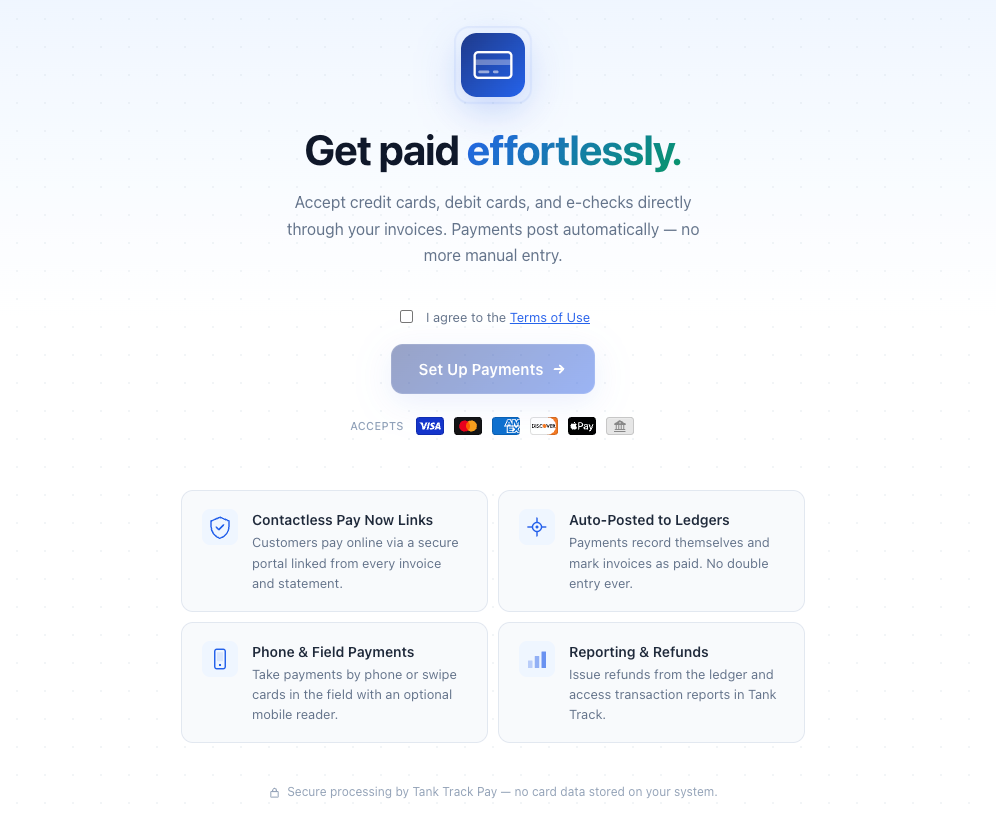
If you haven't applied yet, the page opens on a welcome screen.
Tick the box to accept the Terms of Use. The button stays disabled until you do.
Click Set Up Payments.
Choose a processing plan. The two options are described below.
Click Start Application. Forward's secure application opens in a new tab with your business name, address, phone, and website already filled in.
Plan | What it means |
Standard Processing | You absorb the processing fees. Tank Track notes that businesses on standard processing tend to get paid faster, because there's no extra charge waiting for the customer at checkout. |
Credit Card Surcharging | Eligible credit card payments carry a convenience fee that the customer pays. Debit cards and bank payments are never surcharged. |
Some accounts skip the plan choice entirely and go straight to standard processing:
Canadian businesses — surcharging isn't offered, and bank payments (PAD) aren't available yet, so these accounts are card-only.
Businesses headquartered in Connecticut, Maine, Massachusetts, Texas, or Puerto Rico, where surcharging is prohibited or heavily restricted.
If your account isn't enabled for self-service setup, the button reads Request Access instead and opens a prefilled support ticket.
While your application is under review
Under Your Applications, each application appears as a card showing your business name, the date it was created, and a live status badge — Draft, Under Review, Need Information, Approved, and others. Use Continue Application to pick up where you left off, or Open Application once it's approved.
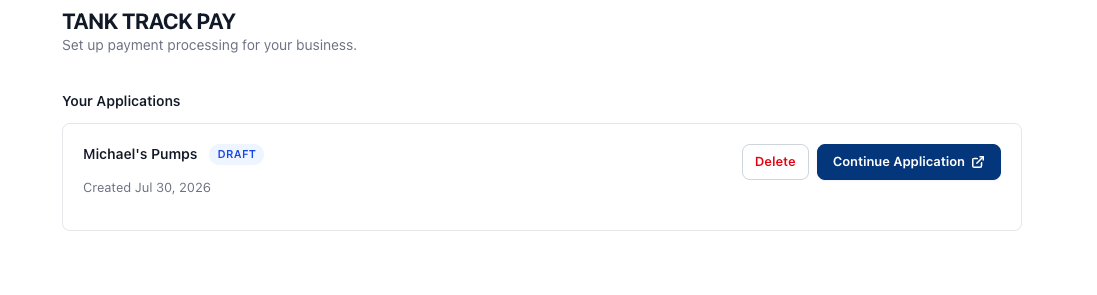
A Draft application can be deleted, and that's permanent. Anything past Draft can't be deleted here.
After approval there's a short wait while the payment gateway finishes setting up your account, shown as an Awaiting gateway onboarding note. US accounts usually clear in a few minutes; Canadian accounts wait on the card networks, which can take a few days. Until that finishes you can't turn on payments or open the merchant portal.
Accept Payments
A status pill shows either Currently Accepting Payments or Not Accepting Payments, above a line reminding you that customers will see a "Pay Now" link on invoices, statements, and emails.
Turning payments on takes effect immediately — Pay Now links start working on invoices, statements, and emails.
Clicking Turn off asks you to confirm first, and it's worth reading that prompt. Every outstanding invoice, statement, and email that already carries a payment link stops accepting payments the moment you confirm. Customers who click through won't be able to finish paying, and you won't know they tried. If you're turning payments off because something's wrong, or because you want customers to cover the processing fee, contact support first — there's usually a better fix.
Accepted Payment Methods
Two toggles control what customers can pay with: Credit & debit cards and Bank accounts (ACH) (shown as Bank accounts (PAD) for Canadian accounts).
You can't switch both off. Whichever method is last stays locked on. If you disable one, Tank Track warns you that dropping a payment method tends to slow down collections.
Canadian accounts are card-only; the bank toggle is disabled.
These changes save through the save bar, not immediately.
Credit Card Surcharging
If surcharging is active on your account, this card shows your fee percentage. You can change the percentage — the minimum is 0.25% and the maximum is 3.00% — but you can't turn surcharging on or off yourself. Contact support for that.
Every payment is checked against the card network before the fee is applied, so only eligible credit cards carry a surcharge. Debit cards, prepaid cards, and bank payments come back with no fee at all.
For the full rules on which cards and which states allow a surcharge, see How Payment Surcharging Works.
Partial Payments
Switch this to Enabled to allow customers to make partial payments on invoices, statements, and unpaid invoice summaries. A second control appears, Default setting for new invoices:
OFF — no partial payment option is added automatically. You can still add one to individual invoices, monthly statements, and unpaid invoice summaries.
ON — a partial payment option is added automatically. You can remove it from individual invoices, monthly statements, and unpaid invoice summaries.
The default applies when a document is sent, so changing it here doesn't alter documents that already went out. Changes in this section save immediately.
Customer Notifications for Online Payments
Customers always receive a payment receipt via email or text. That isn't optional and there's no toggle for it.
Also send a copy of the paid invoice attaches the invoice itself to that receipt. The invoice copy only goes out for jobs dated today or earlier, not for future-dated work.
Notifying your team
Two sections control who on your team hears about payment activity. Both are limited to users with Reports access.
Internal Notifications for Online Payments holds two lists. Email recipients sets who gets an email when a customer submits a payment; Dashboard recipients sets who sees a dashboard notification after each payment. Toggle a person ON or OFF in either list.
Internal Notifications for Failed Payments is a single email list, for payments that fail or are reversed later: ACH payments that don't clear, ACH returns after settlement, and card chargebacks.
Both sections offer + Add additional email address if you want notifications going somewhere that isn't a Tank Track user — a shared bookkeeping inbox, for instance.
Team members without Reports access are tucked behind a Show ineligible users link, with a note explaining why they can't be selected. Grant them Reports access in Settings → Users if they need to be notified.
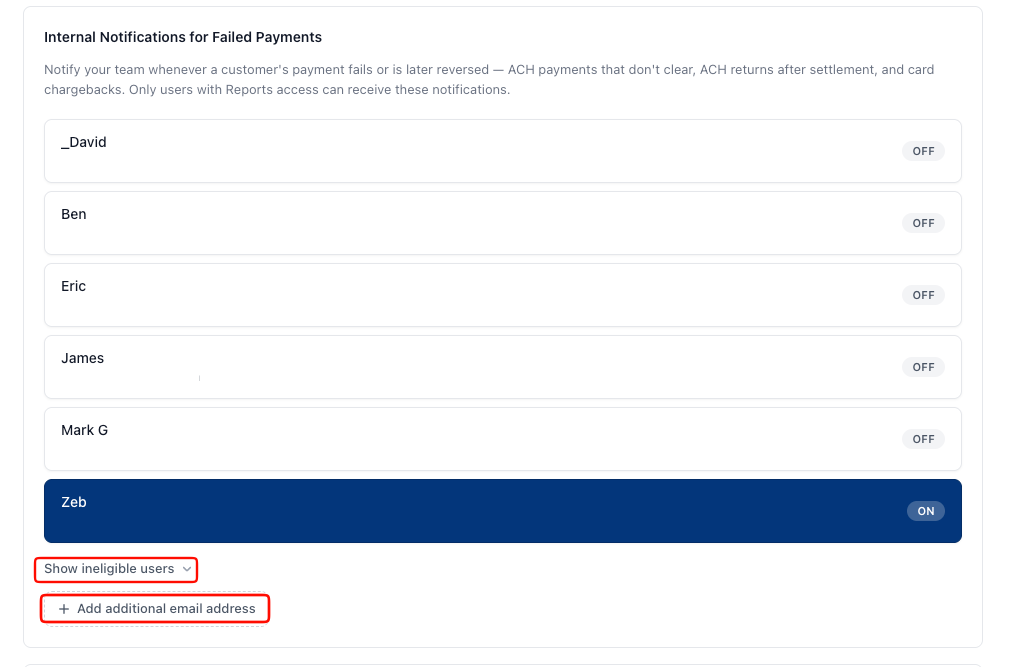
New merchant accounts are opted in to failed-payment notifications automatically, with every Reports user selected. Turn them off here if you'd rather not receive them.
We highly recommend having multiple users who are involved in the payments process be selected to ensure you do not miss any notifications regarding Failed, Returned, or Disputed payments.
Saving your changes
Most controls save the moment you change them. Five don't: the surcharge percentage, accepted payment methods, both notification sections, and the paid-invoice-copy toggle. Those collect in an Unsaved changes bar at the bottom of the screen. Click Save changes to apply them, or Discard to throw them away.
If you change one of those five and navigate away without saving, the change is lost.

Merchant Portal
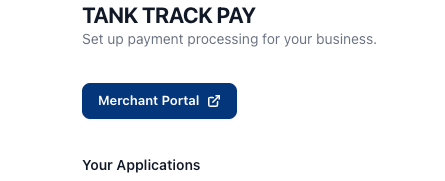
The Merchant Portal button sits at the top of the page, under the Tank Track Pay heading. It opens Forward's portal in a new tab, where you'll find payments, deposits, disputes, and processing reports. It's available to admins and users with Reports access, once your account is approved and fully onboarded. There's also a shortcut on your Tank Track home screen.

One requirement trips people up: your Tank Track user account needs both a first and last name before you can get in. Banking regulations require it. If your name is stored as a single word, update it in your user settings first.
FAQs
Can I stop taking online payments for a while without closing my account?
Yes. Switch Accept Payments off. Pay Now links stop working immediately across every invoice, statement, and email you've already sent. Your account stays open, and you can switch it back on whenever you want.
Why can't I select a coworker for payment notifications?
Notification recipients need Reports permission. Users without it show up greyed out under Show ineligible users. Give them Reports access in Settings → Users and they'll become selectable.
I changed a setting but nothing happened. Did it save?
Check the bottom of the screen for the Unsaved changes bar. The surcharge percentage, accepted payment methods, both notification sections, and the paid-invoice-copy toggle all wait for Save changes.
Can I turn surcharging off myself?
Standard surcharging is switched on and off by Tank Track, so contact support.
Related articles
Getting Started with Tank Track Pay
TankTrack Pay — Merchant Portal
Online Payments for Customers
Invoice & Monthly Statement Settings
Still need help? Submit a Ticket