

Tank Track lets you refund credit card, debit card, or ACH/electronic check payments — in full or in part — for payments processed through TankTrack Pay. Both kinds of refund start the same way: unapply the payment, then process the refund from the property accounting ledger.
Full refund | Partial refund | |
When you'd use it | The payment was applied to the wrong invoice, or the customer wanted to pay another way — a paper check or cash instead of a card. | The invoice charged the wrong amount (say $600 instead of $450), or included a product or service that wasn't needed. |
What's involved | Steps 1–2: unapply the payment, then refund it. | Steps 1–4: unapply the payment, refund part of it, adjust the invoice, then reapply what's left. |
Step 1 — Unapply the payment
Full and partial refunds both start here.
View the invoice you're refunding.
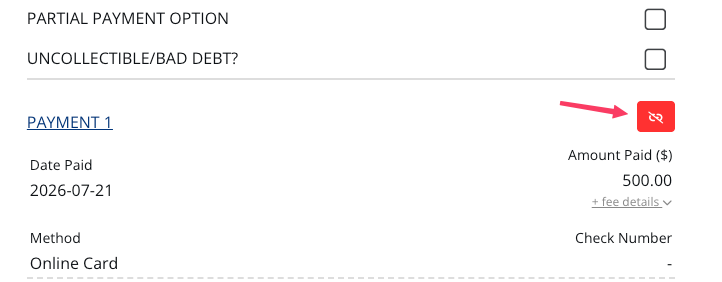
Scroll down to the payment information in the left column. You'll see a Payment link, usually Payment 1.
Click the Unapply Payment icon — the red link-symbol icon directly to the right of the payment link.
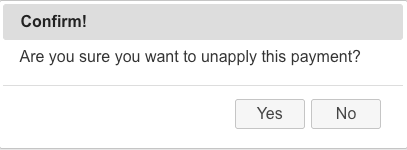
4. A confirmation box appears. Click Yes.
5. Click the Payment link (Payment 1). The property accounting ledger appears.
Step 2 — Process the refund
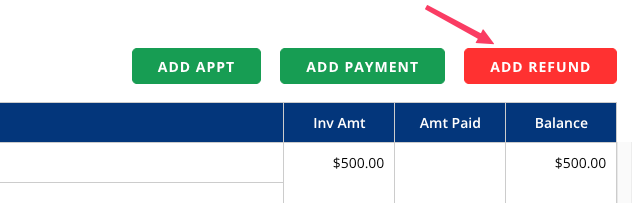
Click the red Add Refund button.
2. A dialog appears asking which payment to refund. Select the payment, then click Next.
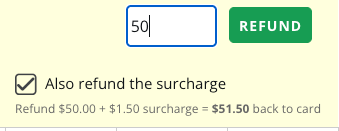
3. The payment ledger shows the full payment amount in a field next to a green Refund button.

4. Set the refund amount:
Full refund — leave the amount unchanged.
Partial refund — change it to the amount you're refunding.
5. If the payment carried a surcharge and you want to return that as well, select Also refund the surcharge. The surcharge is refunded in proportion to the amount you're returning — refunding $50 of a $100 payment that carried a $3 surcharge sends back $1.50 of it, so $51.50 goes to the card. A readout shows the total as you type.
6. Click Refund.
Decide about the surcharge before you click Refund. The surcharge can only be returned as part of the refund itself. Once the refund goes through, there is no way to refund the surcharge afterward — you'd have to make the customer whole another way, such as applying a credit to their account or sending them a separate payment.
A full refund is finished here.
👉 On a partial refund, the portion you didn't refund now sits as unapplied funds. It stays there until you put it back on the invoice — that's Steps 3 and 4.
Step 3 — Adjust the invoice (partial refunds only)
Adjusting the invoice makes it match what the customer was actually charged, so your records and their receipt agree.
View the invoice you partially refunded.
If Job Completed is checked, uncheck it.
Correct the invoice so it reflects the right products, services, and prices. If it charged $500 instead of $450 for pumping a septic tank — the reason for the $50 refund you just processed — change the line item price from $500 to $450. If it included a product or service that wasn't provided, remove that line.

4. Recheck Job Completed if you unchecked it in step 2.
Step 4 — Reapply the leftover funds (partial refunds only)
On that same invoice, click the green + Apply $XXX Credit button. The credit should equal the adjusted invoice total.
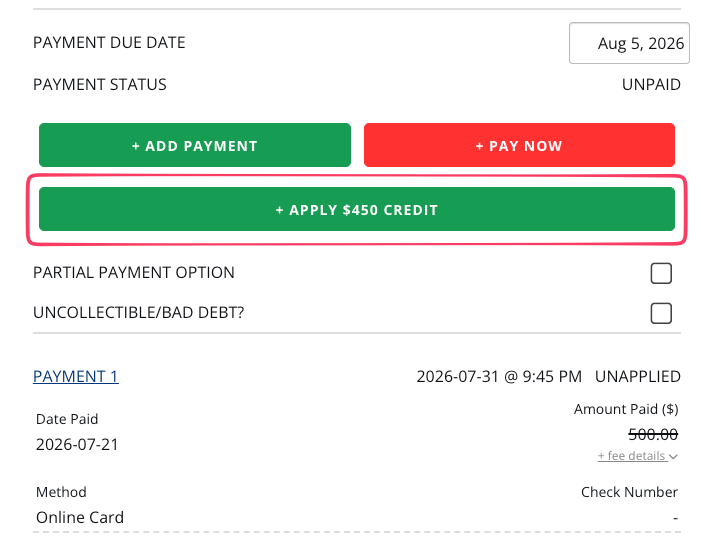
2. Confirm the adjusted invoice now shows paid in full.
Frequently Asked Questions
Why do I have to unapply the payment first?
Unapplying releases the funds from the invoice so they can be refunded (full) or split and reapplied (partial). Skipping it leaves the ledger out of balance.
After a partial refund, why does the invoice still show a credit?
Because the unrefunded portion became unapplied funds. Finish Step 4 — apply that credit to the corrected invoice — so it reads paid in full.
My refund failed — why?
Usually because the payment hasn't settled yet. A payment taken today generally can't be refunded; settlement takes about 1–2 business days, and until then the attempt fails. It isn't something you did wrong, and no money moves when a refund fails.
What to do depends on how the customer paid:
Card — either wait 1–2 business days and issue the refund again, or use the same-day void below if you need it corrected today.
ACH/electronic check — wait for the payment to settle and try again. ACH payments can't be voided, so waiting is the only option.
Can I reverse a card payment the same day?
Yes. Refund the full amount of the payment including the surcharge, on the same day it was taken, and it's processed as a void rather than a refund — the charge is reversed and nothing posts to the customer's card.
Two reasons to use it when it fits:
A void returns the processing fee. A refund doesn't — the fee stays spent.
Your customer never sees a charge and a refund on their statement. There's simply nothing there.
The usual case is charging the wrong total: void the original in full, then re-run the card for the corrected amount.
A void isn't guaranteed. The card network can decline it, and if that happens the attempt fails and you're back to waiting for the payment to settle. Note too that a partial same-day refund won't void — only a full refund including the surcharge does.
Can I void an ACH payment?
No. ACH/electronic check payments can't be voided, so there's no same-day equivalent. Wait for the payment to settle, then refund it.
[MISSING INFORMATION: typical ACH settlement time, so support can quote a number the way we quote 1–2 business days for cards]
How long until the customer sees the refund?
Most cardholders see it within 2–3 business days. The industry-standard window is 5–10 business days from the date the refund is issued, and the exact timing is up to the cardholder's bank.
Does the 3% surcharge get refunded too?
Only if you choose to refund it. When a card payment carried a surcharge, the refund screen shows an Also refund the surcharge checkbox. Select it and the surcharge comes back proportionally to the base amount you're refunding; leave it clear and only the base amount is returned.
One thing to weigh before deciding: the card networks don't refund processing fees, so a surcharge you hand back isn't recovered from the network. See How Payment Surcharging Works.
I already processed the refund — can I still refund the surcharge?
No. The surcharge can only be refunded at the same time as the payment, so once a refund is complete that option is gone. To make the customer whole, apply a credit to their account or send them a separate payment for the surcharge amount.
Related: How Payment Surcharging Works | TankTrack Pay Settings | Invoice & Monthly Statement Settings
Still need help? Submit a Ticket